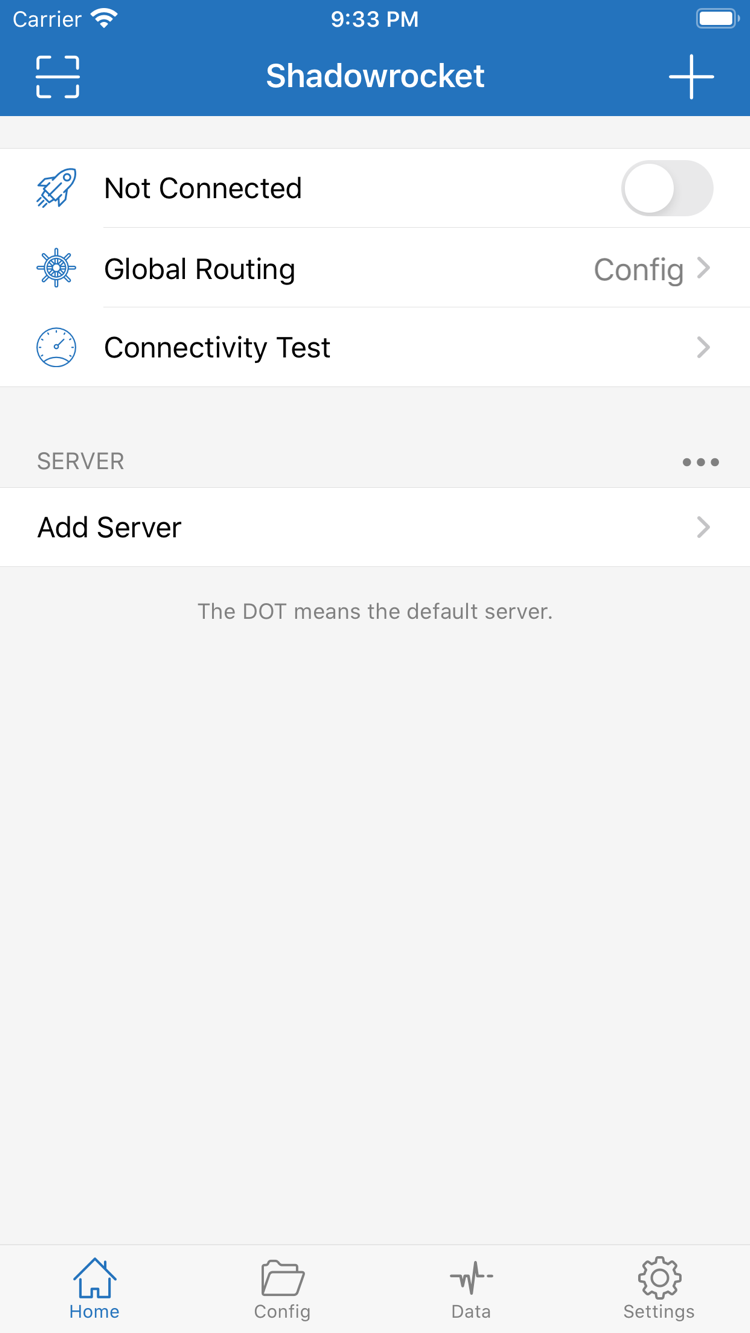
Official Shadowrocket Home screenshot showing the connection switch, Global Routing, and Add Server
Shadowrocket · Official Home interface
Official App Store listing · Official Guide

ShadowrocketUser Guide

A rule-based proxy client for iPhone and iPad, available as a one-time purchase on the App Store. Start by importing an existing subscription, then learn about rule-based routing, connection options, and verification.

  • Global Routing
  • On Demand
  • Shadowsocks
  • WireGuard

Check the App Store listing for system requirements and purchase eligibility.

01 / Get the app

iPhone and iPad
Available from the same App Store listing

Shadowrocket is a paid client for Apple platforms. Before purchasing or restoring the app, check device compatibility, your App Store account, and your purchase history. After installation, import your existing subscription or server details to connect using the relevant configuration.

iPhone

Verify the app on the App Store listing before purchasing. The first time you connect, iOS will ask to add a VPN configuration. Confirm that you are using Shadowrocket, then follow the system prompts to authorize it.

A successful purchase and a successful connection are separate things. Opening the app confirms only that the client is installed. After importing a configuration, verify the server address, authentication details, and network availability separately.

See how to get Shadowrocket on iPhone →

iPad

Use the same Apple Account to find your purchased copy of Shadowrocket. Purchases apply to iPhone and iPad; check the App Store listing for purchase eligibility and system requirements.

After restoring the app, check whether the configurations you need have synced or been imported. Layouts may vary by device. Find features by their interface names, such as Home, Config, and Settings, rather than by fixed button positions.

See how to get Shadowrocket on iPad →

Check the App Store listing for compatibility and purchase eligibility on other Apple devices.

02 / Settings index

Find the right settings by feature

First distinguish server details, routing modes, and configuration files. The server determines where to connect; Global Routing determines how connections are handled; and rules in Config determine the policy for each destination. Checking one layer at a time makes it easier to find the cause than changing several settings at once.

Global Routing

In Home, check Global Routing and identify whether Config, Proxy, or Direct is selected. Config applies the rules in the selected configuration file; Proxy routes traffic through a proxy; Direct connects without a proxy. For everyday rule-based routing, check that Config is active—not just that the connection toggle is on. To troubleshoot, you can temporarily compare modes using the same destination, then restore your preferred setting. Changing this option will not fix an incorrect server address or authentication details.

Global Routing
Config / Proxy / Direct
03 / First connection

Import, choose a mode, and test the connection

These steps assume you already have your own subscription or server details. First establish a manual connection, then configure automatic updates, On Demand, or more specific routing rules. Change one type of setting at a time and note the results before and after.

STEP 01 / INPUT

Add Server and import a subscription

Open Home and use Add Server to add an existing server, or import details from a subscription you already have. When entering details manually, make sure Type matches the server protocol, then verify Host, Port, and authentication fields. A QR code is just another way to enter details; it does not replace checking the parameters.

After importing, check that the expected entries appear in the SERVER group. Subscription names and server labels help identify entries but do not indicate whether they work. If the list is empty, check the input and import results first instead of changing rules.

STEP 02 / ROUTING

Select a Global Routing mode

Select the server you want to test, then check Global Routing. If you have a rules configuration, select Config and confirm the active file in Config. To distinguish a rule issue from a server issue, you can temporarily compare the result using Proxy.

A website loading under Direct does not prove that a proxy connection works. Avoid changing the server, configuration file, and network environment in the same test; otherwise, it is difficult to tell which change affected the result.

STEP 03 / CHECK

Connect and test

Turn on the connection toggle. The first time you connect, follow the system prompts to add a VPN configuration. Then run Connectivity Test and visit the destination you need to check. A VPN-connected status confirms that the tunnel is up, but you still need to verify access to the destination and check which rule matched.

If the connection is established but access fails, check server authentication, domain resolution, and the routing policy in that order. Note the exact error message and retest the same destination. Do not judge the entire configuration based on a single test result.

If the connection fails, identify where it stops

If the list has no entries, check the import first. If a connection cannot be established, check the server parameters and system authorization. If only some websites fail, check domain resolution and rule order. If the connection works but traffic is not routed as expected, revisit Global Routing and the active Config instead of repeatedly restoring or purchasing the app. App purchase history and server connection status are managed separately, so track them separately when troubleshooting.

Read the full setup guide →
04 / App verification and purchases

Verify the app, then distinguish purchase from configuration

Shadowrocket is a closed-source commercial app. This is the Shadowrocket Official Guide, with instructions for getting the app, setting it up, and troubleshooting. Check the App Store product page for the app’s identity, price, system requirements, and compatibility.

Check the developer, icon, and app ID together

Official Shadowrocket app icon: a blue-purple outlined rocket on a white background

The developer should be Shadow Launch Technology Limited. The product page URL should include id932747118, and the app ID is 932747118. The icon should match the official icon shown here. A similar name, a high search ranking, or matching keywords in a description is not enough to verify an app’s identity.

Open the product page itself rather than relying on the search result preview. Check the name and icon, review the developer information, then confirm the app ID in the product page URL. Proceed with the purchase only after all three match. Manage future updates through the App Store; there is no need to look for app files elsewhere.

App Store availability and Apple Account region

Whether the app appears in the store depends on the current storefront and account-related conditions. If the product page says the app cannot be purchased in your region, follow the store’s message and first check the Apple Account you are using and its region. Not finding the app in search is different from a connection problem on your device; changing server settings will not resolve a purchase issue.

Check the App Store listing for device compatibility, system requirements, and purchase eligibility. Before buying, compare these details with your device. Confirm the price in the currency and amount shown in your current storefront; use Apple’s purchase history to verify the transaction.

Manage the one-time purchase and existing services separately

The US storefront price is about $2.99 as a one-time purchase. Other storefronts display local currencies; the price at checkout on the App Store is final. The app is available for iPhone and iPad; check the store listing for purchase eligibility. After purchasing the app, set it up with subscription or server details you already have.

If the servers in your subscription change, check the details with your own provider and refresh the relevant subscription in the client. For app purchase or restore issues, check your Apple Account and purchase history. Keeping these credentials separate makes it easier to find the right steps when changing devices, restoring the app, or troubleshooting.

Restoring the app on a new device does not restore all configuration

After changing devices or reinstalling, use the Apple Account that made the original purchase to find Shadowrocket in App Store purchase history. If the product page shows a price again, first check that you are signed in to the original account, that the purchase appears in its history, and that the app is available in your current storefront. Do not assume that you must pay again.

After restoring the app, check the server list and Config. If you use iCloud sync, confirm the relevant sync settings and verify what was actually restored. Import anything still missing from information you saved yourself. Subscription links may contain authentication parameters; treat them as private credentials when backing up or transferring them, and do not include them in public screenshots or shared documents.

The App Store manages routine updates. If a setting moves after an update, find it by its interface name, then recheck the active server, Global Routing, and selected configuration file. Verify the result by testing actual access and reviewing diagnostics—not just by looking at the toggle or confirming that the app updated.

Before continuing, distinguish these three concepts

Subscribe and Config: Subscribe mainly manages the source of existing server entries, while Config stores rules and other configuration details. Updating one does not update the other. Before importing, identify which kind of information you have.

PROXY and DIRECT: These are policy keywords in rules, distinct from the Proxy and Direct options in the Global Routing interface. Identify the global routing mode first, then interpret the result of an individual rule.

Connection status and access results: The system VPN status, server tests, and access to a destination website each reflect a different step. Recording exactly where a failure occurs is more useful for narrowing down the cause than simply saying “it doesn’t work.”

See the glossary for interface terms and rule keywords →
05 / Guides by task

Guides to connections, restores, and routing rules

These guides cover system authorization, restoring the app on a new device, and routing selected websites. Start with the section that matches your issue, then follow the checks in order. Before changing configurations, keep a copy of anything that currently works.

Get it on the App Store