Global Routing
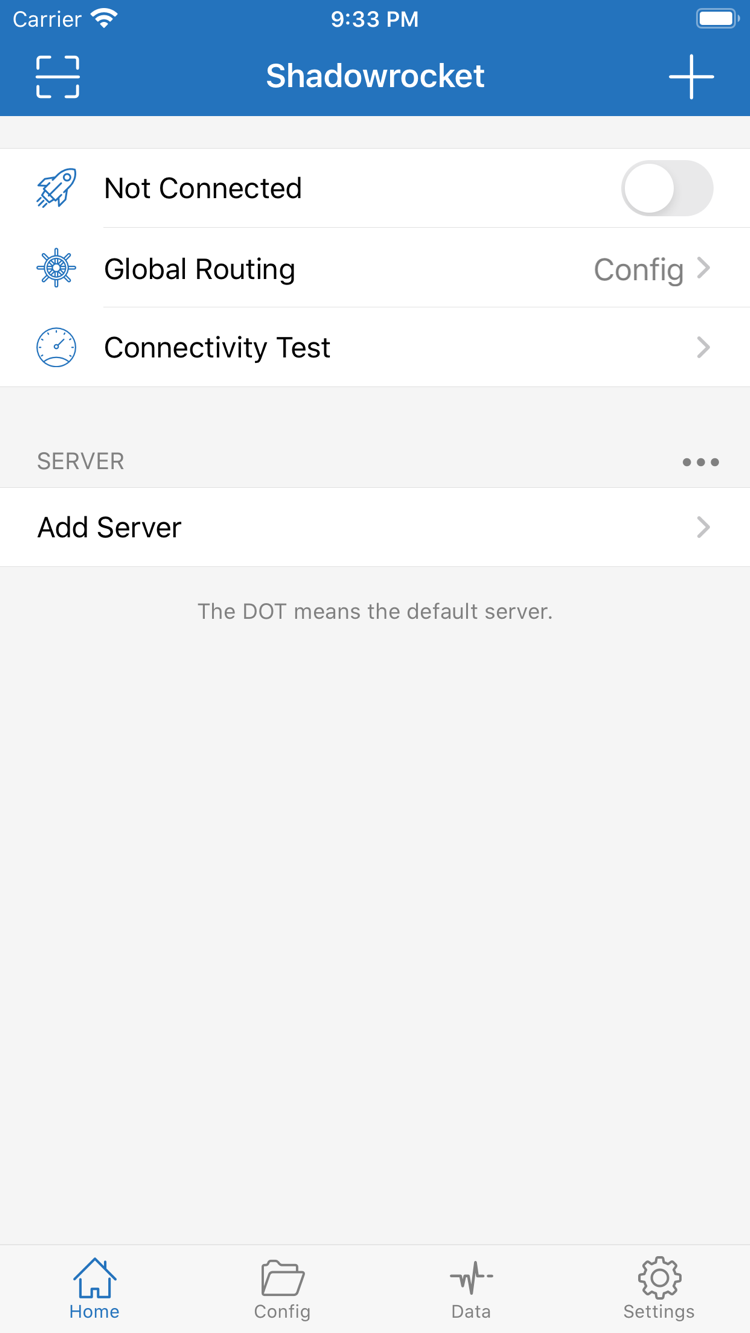
In Home, check Global Routing and identify whether Config, Proxy, or Direct is selected. Config applies the rules in the selected configuration file; Proxy routes traffic through a proxy; Direct connects without a proxy. For everyday rule-based routing, check that Config is active—not just that the connection toggle is on. To troubleshoot, you can temporarily compare modes using the same destination, then restore your preferred setting. Changing this option will not fix an incorrect server address or authentication details.
Global Routing
Config / Proxy / Direct
On Demand
On Demand, found in Settings, starts a connection when configured conditions are met. First verify that a manual connection works and that you can reach your intended destinations. Then set up On Demand conditions to avoid mistaking server configuration problems for trigger failures. Check both the system VPN status and the in-app connection status, and test again on the relevant network. If you need to stop automatic connections temporarily, check whether On Demand is still enabled. On Demand controls when to connect; it does not replace domain- or address-based rules in Config.
Settings
On Demand
Rules
Manage rules in Config, where they are matched in order. DOMAIN matches an exact domain, DOMAIN-SUFFIX matches a domain and its subdomains, and IP-CIDR matches an IP address range. FINAL handles connections that do not match earlier rules. Put more specific rules before broader ones. After editing, confirm that the intended configuration is selected and Global Routing is set to Config, then make a new request to the destination. example.com is used only to illustrate the syntax; the PROXY policy must be associated with a server you already have and can use.
DOMAIN-SUFFIX,example.com,PROXY
IP-CIDR,192.168.0.0/16,DIRECT
FINAL,DIRECT
Multiple protocols
In Add Server, select Type to match the actual server configuration. Shadowsocks, VMess, VLESS, Trojan, HTTP, SOCKS5, WireGuard, and Hysteria2 use different parameters; changing only the protocol name while keeping the other fields is not enough. Verify the address, port, authentication method, and any TLS, transport, or key settings required by the server. Choose a protocol based on server support, not its name or a single test result. For details on field differences, consult the protocol reference, then check each setting in the client.
Type
Host / Port / Password / Method
Subscribe
Use Subscribe to manage subscription details you already have. Before importing, confirm that the link came from your own provider and copy it in full. Treat links containing authentication details as credentials. After importing, check that the server list appears, then test a server. Updating a subscription refreshes its server entries; it does not fix routing rules or guarantee that every server will connect. If an update fails, check that the link is valid and that the network is working. Keep any existing working configuration rather than repeatedly deleting and recreating it, which can lead to data loss.
Subscribe
Add Server
Scan QR Code
Configuration files and diagnostics
Config stores rules and other configuration details. Keep a restorable copy before making changes. If you use iCloud sync, check the sync settings and confirm the results on the target device; restoring the app does not necessarily restore its configuration. Start connection troubleshooting with Connectivity Test, then review Diagnostics and Data in Settings. Traffic logs can help locate requests, but traffic counts alone do not prove that a destination is reachable. Before sharing diagnostics, remove subscription credentials, server authentication details, and private browsing records.
Config
Connectivity Test
Settings / Diagnostics
Data